> For the complete documentation index, see [llms.txt](https://docs.anyone.io/llms.txt). Markdown versions of documentation pages are available by appending `.md` to page URLs; this page is available as [Markdown](https://docs.anyone.io/sdk/integrations/monero-cli.md).
# Monero CLI
Using Monero CLI Wallet with Anyone Network.
This guide shows how to run Monero CLI with all outbound RPC traffic routed through the Anyone network, ensuring no direct daemon connections leak your real network identity.
#### 1 - Download and extract Monera CLI
Download the official Monero CLI binaries for your system from and extract them.
```
wget https://downloads.getmonero.org/cli/linux64
tar -xvf linux64
```
This creates a directory similar to: monero-x86\_64-linux-gnu-v0.18.4.5/
#### 2 - Start Anyone client
Start the Anyone anonymizing overlay so the local SOCKS5 proxy is available, and confirm the service is running successfully.
```
sudo systemctl start anon
systemctl status anon
```
#### 3 - Navigate to the Monero CLI Directory
All Monero CLI commands must be executed from the extracted binaries directory.
Launch the Monero wallet with:
* SOCKS proxy enabled
* Remote daemon
```
cd ~/monero-x86_64-linux-gnu-v0.18.4.5
./monero-wallet-cli \
--proxy 127.0.0.1:9050 \
--daemon-address opennode.xmr-tw.org:18089 \
--daemon-ssl-allow-any-cert
```
What this does:
* All daemon communication is routed through Anyone
* No direct RPC connections leave your machine
#### 4 - Open or Create Wallet
When prompted:
* Enter a wallet name (existing or new)
* Enter wallet password
The wallet will load and connect to the remote daemon.
#### 5 - Verify Traffic Is Routed Through Anyone
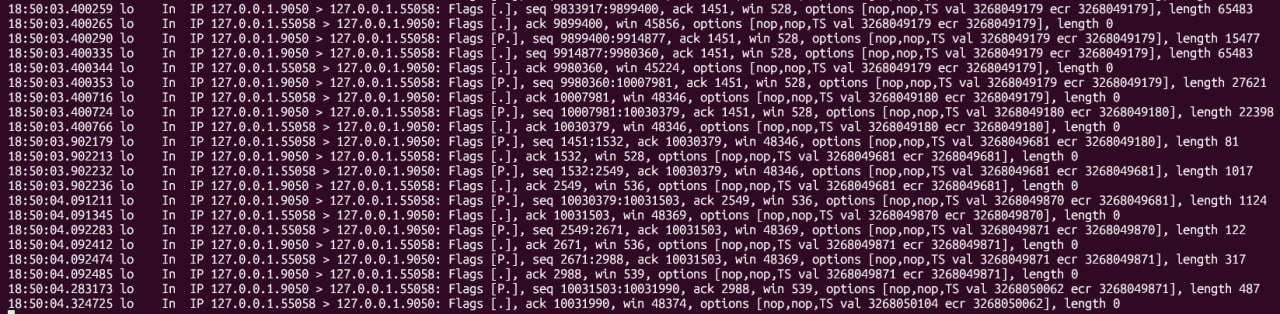
Verify Traffic Is Routed Through Anyone with a TCP dump. Keep this terminal running while you trigger wallet activity in the other terminal.
```
sudo tcpdump -i any port 9050 -nn
```
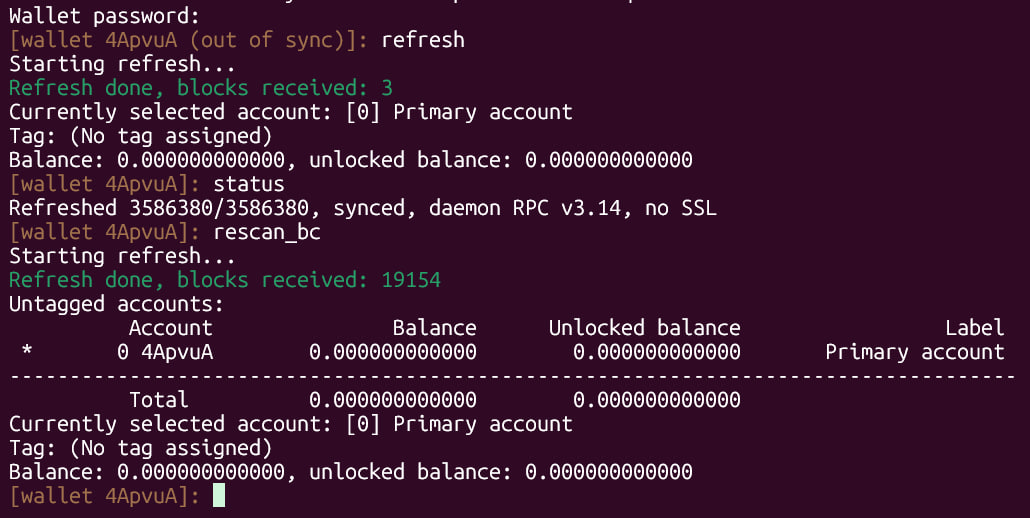
Now return to the wallet terminal and run:
```
refresh
status
rescan_bc
```
Expected Result:
* You should only see traffic between local address and the Anon SOCKS port (9050).
* You should not see direct connections to the RPC IP.
This confirms all Monero RPC traffic is passing through Anyone.