> For the complete documentation index, see [llms.txt](https://docs.anyone.io/llms.txt). Markdown versions of documentation pages are available by appending `.md` to page URLs; this page is available as [Markdown](https://docs.anyone.io/relay/network/port-forward.md).
# Router Port Forwarding
Port forwarding is a necessary step in setting up a Anyone Relay, allowing external connections to reach your relay's designated port (default: 9001). This universal guide covers the port forwarding process applicable to most routers. It's important to note that while the default port is 9001, you can optionally choose another port.
### 1. Access Your Router's Settings
In this step we provide examples for different Operating System's on how to get your routers IP-address to access its settings. The IP-address of a router may differ but is typically something like: `192.168.x.x` or `10.x.x.x`.
**If you already know how to access your router's settings then you can skip to** [**next step**](#id-2.-locate-the-port-forwarding-section-in-your-routers-control-panel)**.**
{% tabs %}
{% tab title="Windows" %}
1. **Open Command Prompt**
Press `Win + R`, type `cmd`, and press Enter to open the Command Prompt.
2. **Run `ipconfig`**
Type `ipconfig` and press Enter. Look for the "Default Gateway" entry under the active network connection.
**Identify Router IP**
```
Default Gateway . . . . . . . . . : 192.168.1.1
```
{% endtab %}
{% tab title="macOS" %}
1. **Search for and open the 'terminal.app' application.**
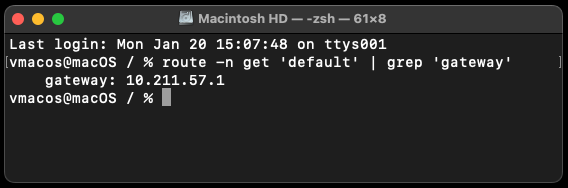
2. **Copy and paste the below commands in full in the terminal.**
{% code fullWidth="false" %}
```sh
route -n get 'default' | grep 'gateway'
```
{% endcode %}
In this example, the output of the commands show that the IP-address of the router is **`10.211.57.1`**. This is the IP-address to open a browser to access router settings.
{% endtab %}
{% tab title="Linux" %}
1. **Search for and open the 'terminal' application.**
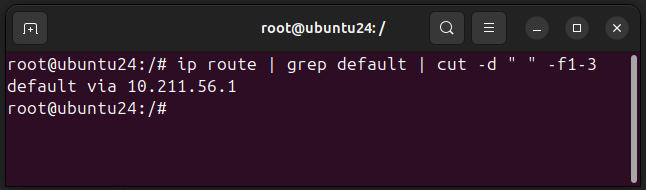
2. **Copy and paste the below commands in full in the terminal.**
```sh
ip route | grep default | cut -d " " -f1-3
```
In this example, the output of the commands show that the IP-address of the router is **`10.211.56.1`**. This is the IP-address to open a browser to access router settings.
{% endtab %}
{% endtabs %}
### **Open Your Web Browser**
Now open any web browser and paste the IP-address of the router that you looked up in the previous step.
#### **Login to the Router**
Enter your router's username and password. If you haven't changed these, check your router documentation or on the back label, for default credentials.
### 2. Locate the Port Forwarding Section in your Routers Control Panel
#### **Navigate to Port Forwarding**
Look for a section named "**Port Forwarding**" in your router settings. The location may vary but is often found under the "Advanced" or "Security" tab.
#### **Choose a Device**
Select the device running your Anyone Relay from the list of connected devices.
### 3. Configure Port Forwarding
**a. Add a New Rule**\
Create a new port forwarding rule.\
\
b. **Specify Port**\
Enter the port number \
Default is normally 9001 otherwise specify your chosen port in the required fields.\
\
c. **Select Protocol**\
Choose "TCP/UDP" as the protocol.\
\
d. **Set IP Address**\
Enter the local IP address of your Anyone Relay device. You can find this in your device's network settings.\
\
e. **Leave source IP empty**\
Do not enter anything in the field for source IP to ensure anyone on the network can connect to your relay on the specified port.
#### Save your settings, and if required, reboot your network router or firewall.
### 4. Verify Port Forwarding
#### **Use Online Tools**
Utilize online tools like "CanYouSeeMe.org" to check if your specified port is open.
Make sure your Anyone Relay is configured to use the forwarded port. \
Update the anonrc file with the chosen port accordingly.
```bash
ORPort
```
### 5. Security Considerations
#### **Use Strong Passwords**
Make sure your router login credentials and Anyone Relay are secured with strong, unique passwords.
\
**Regularly Monitor Activity**
Periodically check router logs for any unauthorized access and monitor your relay's performance.
***
### External Resources
For router-specific instructions or troubleshooting, refer to your router's manual or visit the manufacturer's website. Below are links to guides for some popular router brands:
* [Linksys Port Forwarding Guide](https://www.linksys.com/support-article?articleNum=138535)
* [Netgear Port Forwarding Guide](https://kb.netgear.com/24289/How-do-I-set-up-port-forwarding-to-a-local-server-on-my-NETGEAR-router)
* [TP-Link Port Forwarding Guide](https://www.tp-link.com/us/support/faq/1379/)
* [D-Link Port Forwarding Guide](https://www2.dlink.com/us/en/support/faq/routers/mydlink-routers/dir-605l/how-do-i-configure-port-forwarding-on-my-router)
* [Asus Port Forwarding Guide](https://www.asus.com/support/FAQ/1037906/)
Remember that the steps may vary slightly based on different router models. Always prioritize security and consult your router's documentation for model-specific details.